Tracking Results
The probabilistic calculations always encapsulate the tracking
information if it has been entered for a task. RiskyProject shows
results of the tracking calculations in several different ways
depending upon the view you are using to examine it. Here is how Tracking information is presented in Professional version:

Entering tracking data
- Select the task to which you want to enter the tracking data.
- Open the Task Information dialog box.
- Click the Tracking tab. By default, the first row should
contain the actual start time with zero percent done.
- Click the row below the previous entry.
- Enter the status date or select it from the calendar.
- Enter the percentage of the task completed by the specified date. All
dates and percentages must be consistent. For example, you cannot have a record
with 60% completed before a record with 40% completed. In addition, you cannot
have historical data with the date Jan 5,2004 before the record with Dec
14,2003.
- Optionally enter remaining duration parameters: low, base, and high
duration, and statistical distribution for remaining duration. If you don't
enter this information remaining duration on each iteration will be calculated
using extrapolation of original duration.
- Define parameters of statistical distribution for remaining duration (see
'Defining statistical distribution for remaining duration' more information).
- You can define Actual Work for each resource assigned to a task. It can be used to calculate tracking information.
To enter Actual Work use Resources tab of Task Information dialog box.
- Type in a comment to record actual details of work completed. You can now
view the Tracking chart.
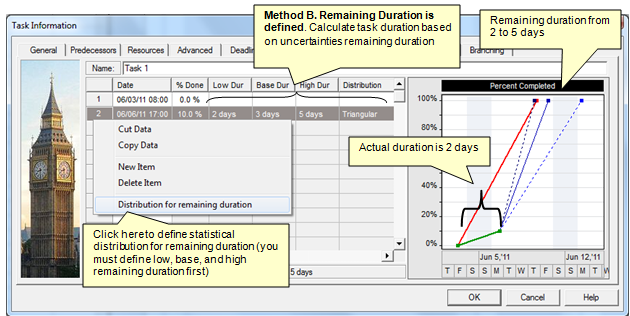
- To view any tracking information, including the percentage completed for summary
tasks and the project, you must calculate the project.
- Remaining duration information is used only for probabilistic analysis.
See
also
Tracking Performance
Task Information Tracking
Defining Statistical Distribution for Remaining Duration
|

